Zap AI
Zap AI is an integrated AI assistant within Zap Data Hub that allows you to get context-aware help, and ask questions about your data.
Zap AI is currently in early preview. Access is available on request to customers on Gold and Platinum plans as a free add-on with some session limits. You'll be notified in advance of any changes to data usage policies.
Zap AI is not currently available on-premises.
Accessing Zap AI
You can access Zap AI from the AI icon at the top-right of the page, or by pressing Ctrl + /.

The Zap AI panel
The Zap AI panel opens on the right edge of the screen, out of the way of your main work area. You can resize it by dragging the left edge, or reset its size by double-clicking the left edge.
-
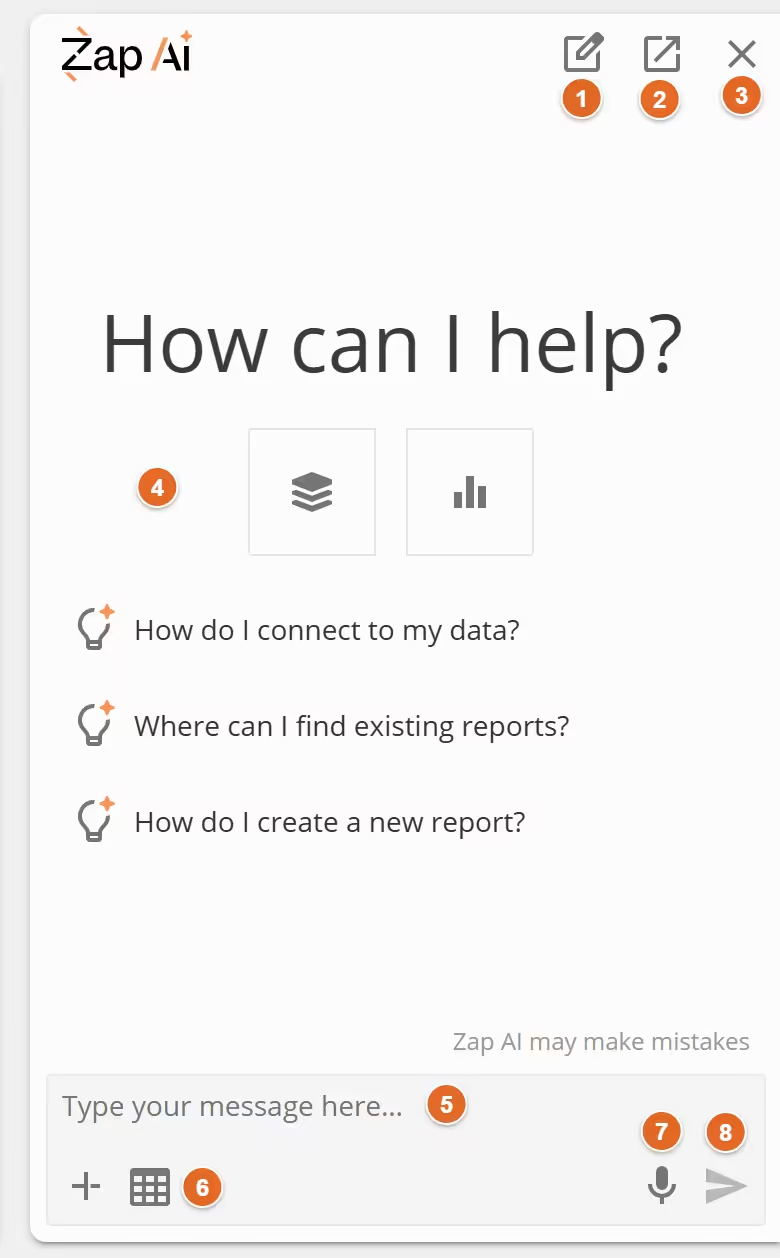
New chat - Starts a new conversation, clearing the chat history. Shortcut: Ctrl + Shift + /.
-
Pop out - Moves the Zap AI panel into a separate always-on-top window. Will change to a Return to page button while in this window.
-
Close - Closes the Zap AI panel. You can reopen it using the AI icon or keyboard shortcut: Ctrl + /.
-
Suggestions - Before the conversation has begun, this area shows some example questions you can ask Zap AI. You can click on the model and chart icons to see examples specific to those contexts. Once the conversation has started, this area shows the conversation history.
-
Message box - Type your message here. Press Enter to send, or Shift + Enter to add a new line.
-
Chat context - Shows the current context provided to Zap AI. See Managing context for more information.
-
Start dictation - Click to start voice input. Click again or send your message to stop. Shortcut: Ctrl + M.
-
Send - Sends your message to Zap AI. Will change to a Cancel button while Zap AI is generating a response, allowing you to cancel the current request.

Conversation history
Once the conversation has started, the central area of the Zap AI panel shows the conversation history. You can scroll through previous messages, and click on links to open models, charts, and other resources mentioned by Zap AI.
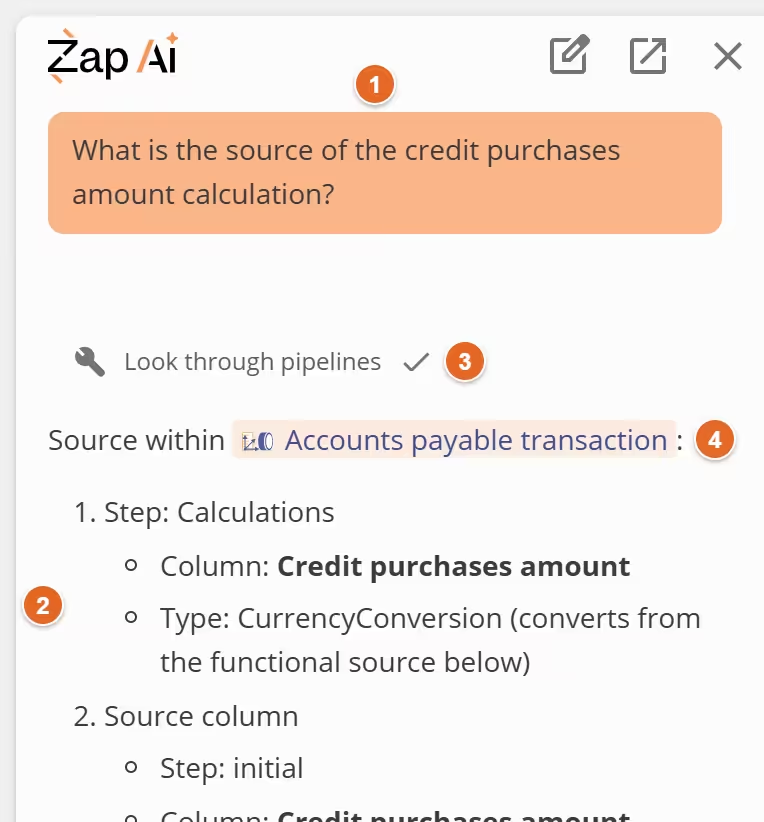
- User message - Your message to Zap AI.
- Zap AI response - The response from Zap AI.
- Tool use - Indicates what actions Zap AI has taken, such as inspecting a model or searching the documentation.
- Resource link - Click to open the mentioned resource.
Managing context
Context is useful for shaping how Zap AI responds to your messges. With a resource in context, Zap AI can tailor responses to be more relevant to that resource.
To keep conversations focused, the context can be changed to reflect what is relevant to your message.
Configure analysis reports
Zap AI can only access analysis reports that you have explicitly made available. You can configure which reports are accessible and how they are described using the options in the Home design panel.

-
Talk data to me - Controls if an analysis report is avaiable to Zap AI, even when it is not the active tab. When toggled on, the analysis report is made available to Zap AI through the Talk data to me context option.
-
Change AI description - Opens the AI description editor. Use the AI description to provide Zap AI with a more specific description of the purpose of the report. This helps Zap AI give more relevant and accurate responses when referencing the report.
Active chat context
You can filter the chat context to focus Zap AI on specific data by selectively enabling or disabling context sources.
Click the Add context button to manage the context, or the Active tab icon to remove the current tab from the context.

Talk data to me
Enabling Talk data to me allows Zap AI to find and inspect the results of all analysis reports with Talk data to me enabled on them. Requires data access.
Active tab
Enabling the active tab allows Zap AI to inspect the design and results of the open model, pipeline, or analysis report. Requires data access.
Data access
In order to provide context-aware help, Zap AI needs to inspect the contents of your active tabs and available reports. Since this may involve sensitive data, you need to explicitly grant permission for Zap AI to access your data.
When you first open the Zap AI panel, you'll see a prompt to enable data access.

Click Allow access to allow Zap AI to inspect the contents of your active tab. Note that only administrators can grant data access for an organization; other users will need to ask their administrator.
After allowing access, the prompt will change to indicate that Zap AI has access to your data. You can revoke access by clicking Disable access.